Which Tourbox Model Should You Buy In 2026?
Which Tourbox Model Should You Buy In 2026?
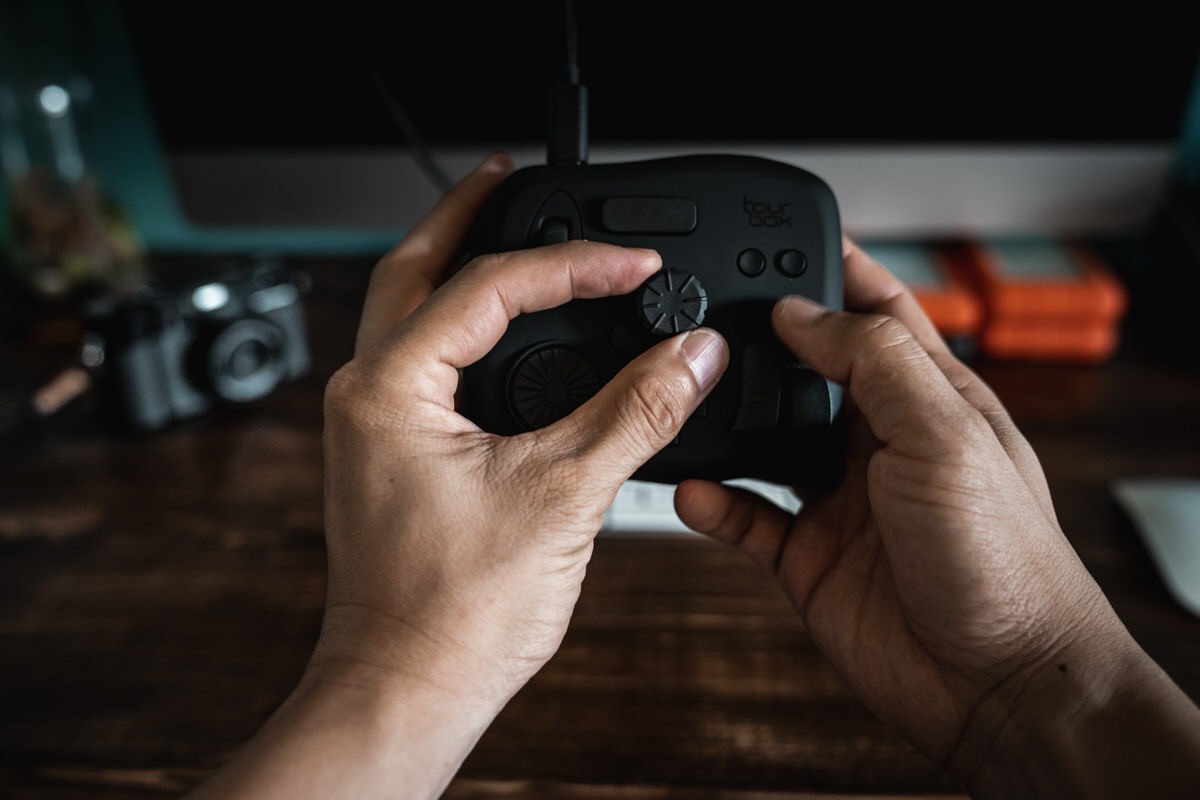
I reviewed the original Tourbox controller back in August 2020 for PetaPixel. The device, with its Frankenstein mash-up of buttons, dials and wheels promised to “change the way you edit” and save time. Surprisingly, it delivered on that claim.
After customizing it to my workflow, the Tourbox earned a spot on my desk for a while. The companion software, Tourbox Console, while robust, was still new and was missing certain functionality. There was certainly room for development.
A year later, Tourbox sent me their new Elite model. It looked nearly identical, but was now wireless and added haptic feedback. More importantly, new updates for the Tourbox Console added features that significantly improved the usability. This renewed my interest and desire to use controller again.
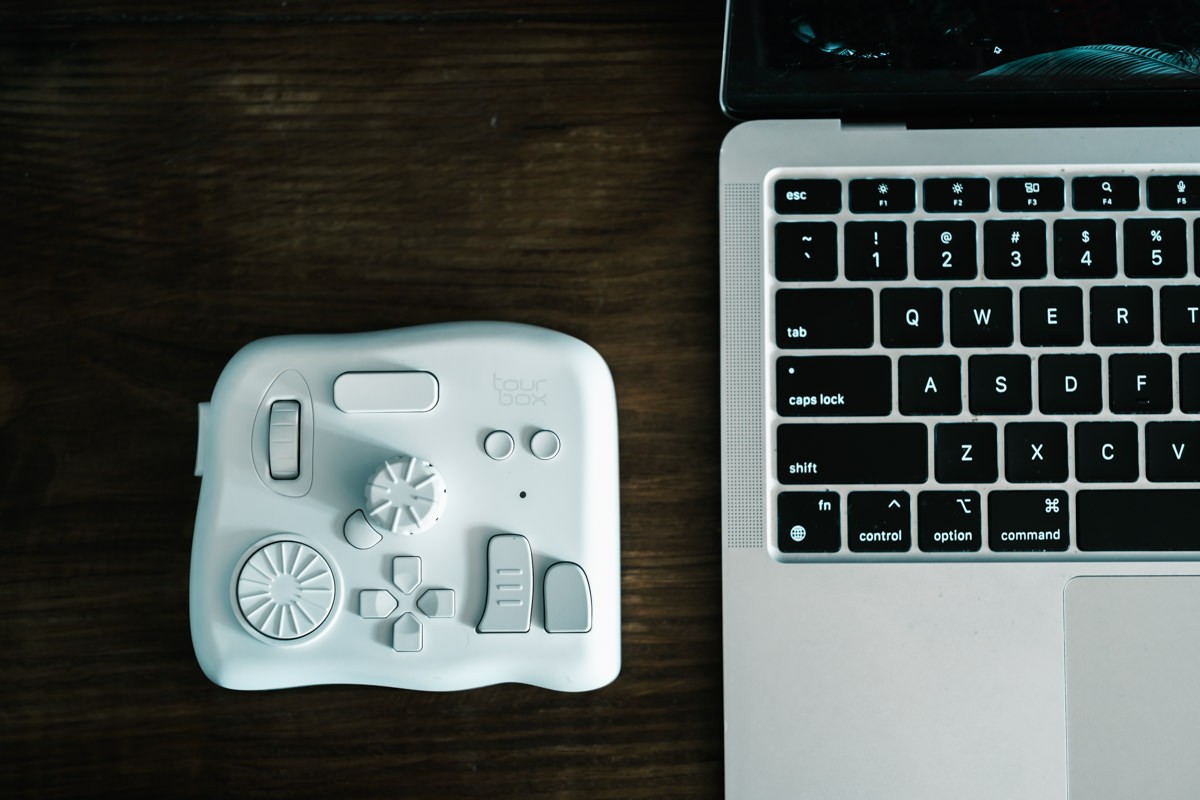
The thing is, I then eventually stopped using the device, for one reason: I’m always traveling, so I kept forgetting what I configured all the buttons and dials to do whenever I stopped using it for a while. Muscle memory takes time.
When you use the Tourbox regularly, it becomes indispensable.
Update: The New TourBox Elite Plus now adds compatibility with iPad and other tablets.
The $95 Tourbox Lite Rounds Out The Family
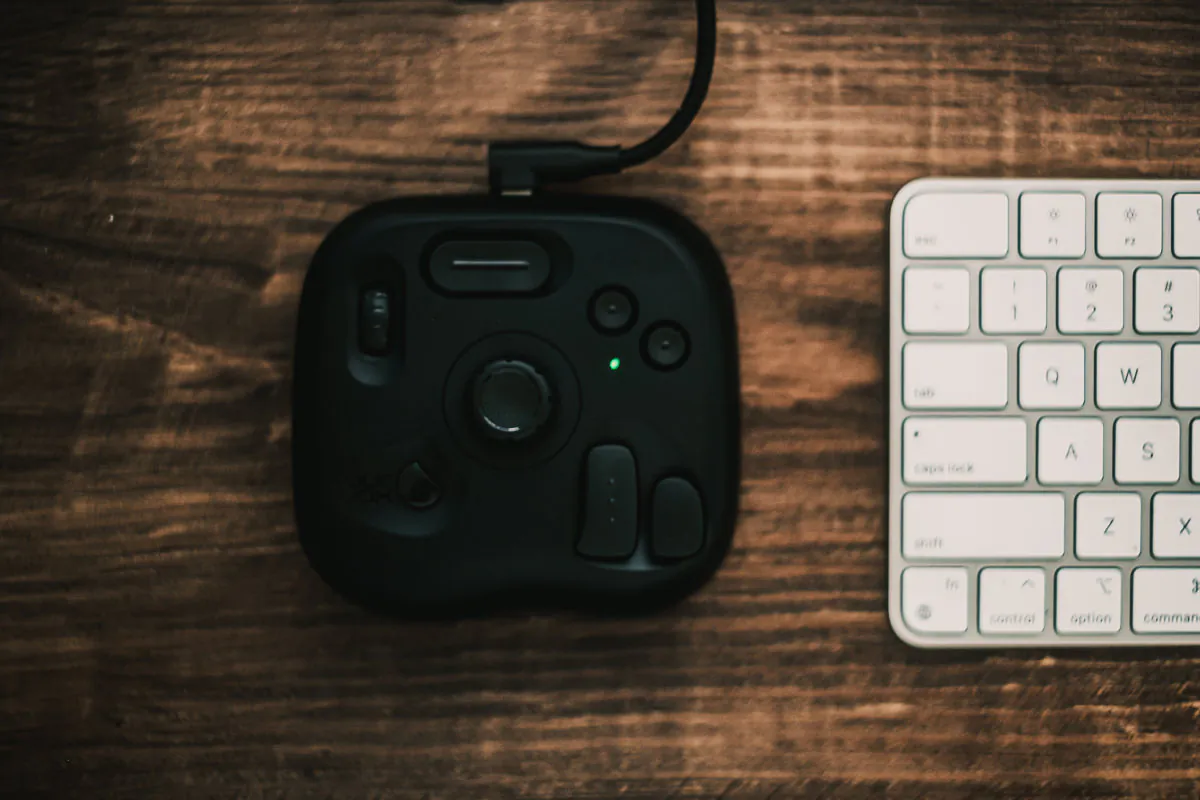
Recently, TourBox released their lowest priced model, the TourBox Lite. The USB-C cable returned, the haptic feedback was removed, and gone were the 4 button D-pad, the dial wheel, and the side button. At first, they seemed like huge step backwards to reduce the price to $95.
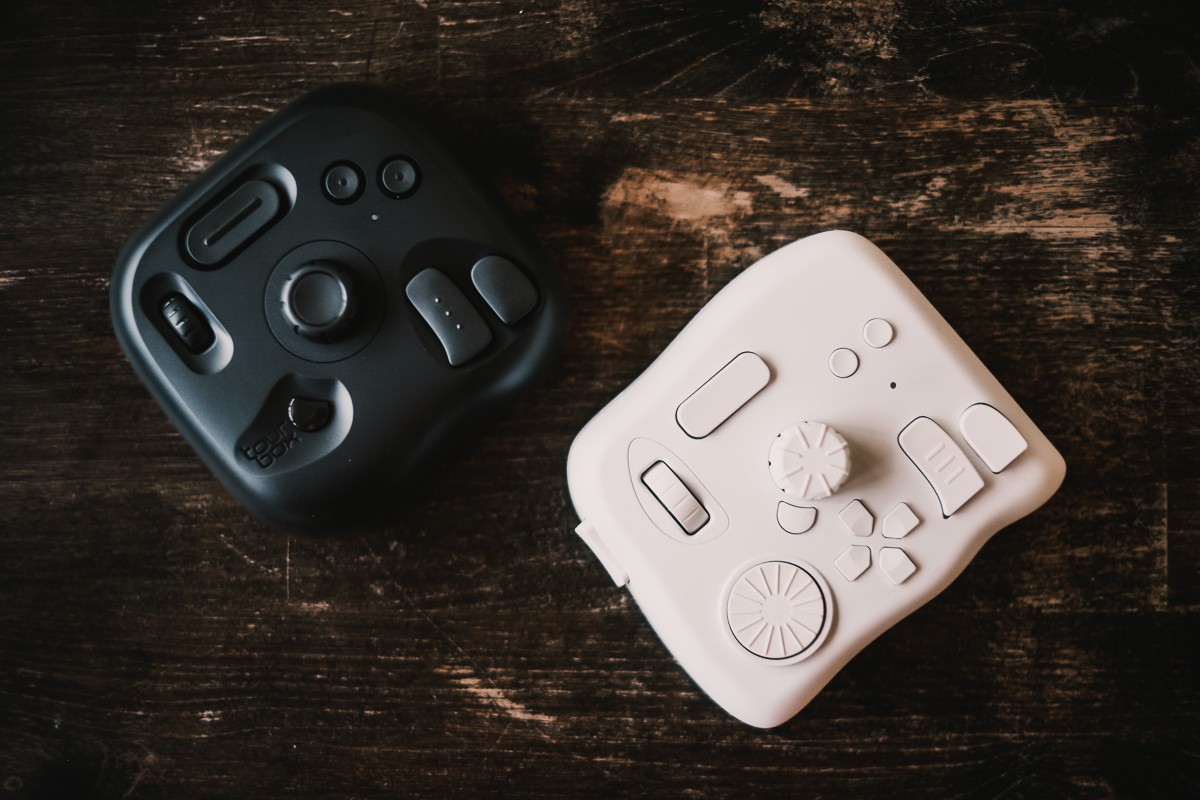
To do a full review, I swapped out my Elite with the Lite for 2 weeks, and customized the device from scratch, application by application, as if I were a new user. Despite having fewer buttons, I found that the TourBox Lite could do everything I really needed.
Did that mean that the older layout on the Elite was not necessary? The answer is complicated in a good way.
The TourBox Console Keeps Getting Updated
The heart of the TourBox system is the Console software that allows you to customize all the buttons and dials.
What I appreciate about TourBox as a company is that they practice the Kaizen philosophy of bringing new features to their existing device, instead of locking out early adopters and forcing them to update.
Ultimately, they are giving users different hardware options based on their needs at different price points that’s accessible for everyone.
What I found each time I update the console and learning the new features is that the company has figured out solutions to both minor and major problems I had before.
Using The TourMenu To Organize Commands
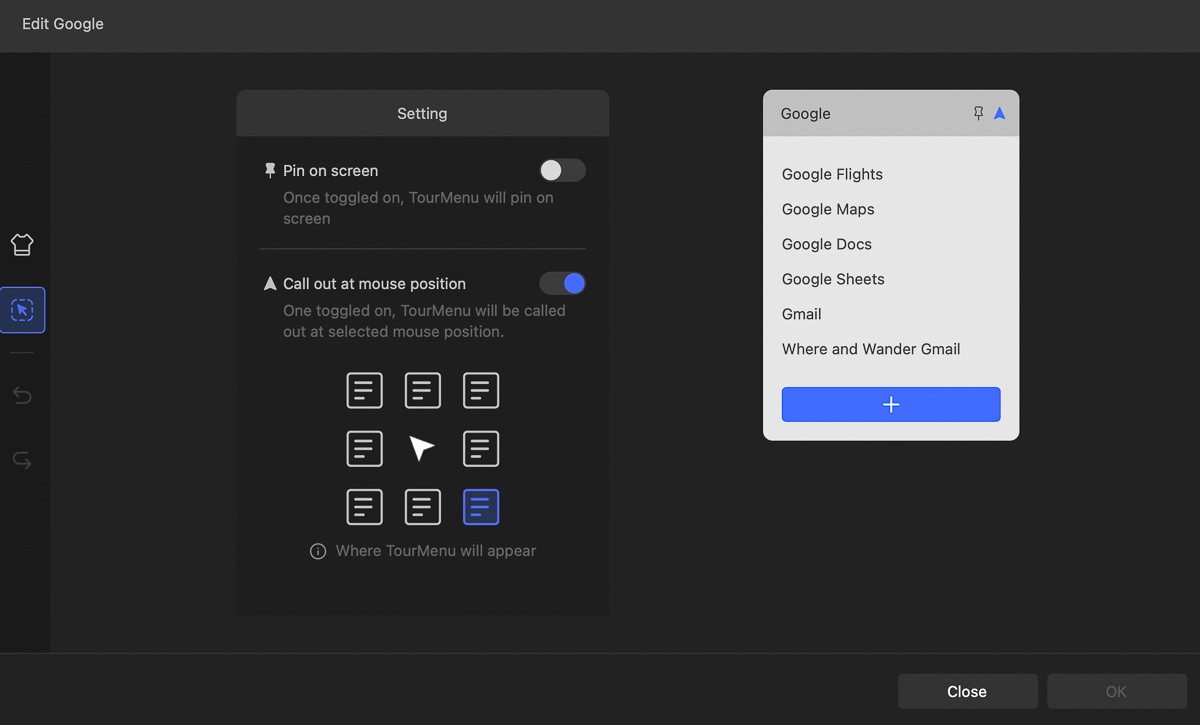
For example, TourBox Console 5.6, amongst many features, added the TourMenu option that allows me to quickly configure a set shortcuts, links, or commands to open up with one click.
Rather than mapping individual actions to buttons, I prefer for them to open drop-down menus. In Lightroom, for example, I can group a set of tools or presets into individual menus. In Safari, I can open up a link to some of the different Google apps I use.
They will open it wherever my mouse position is on the screen. I appreciate that you can configure this too, which shows the attention the software team gives to the UI and customization experience.
In practice, I now just need to remember that the left arrow opens up my Google set, instead of having to assign each app to a button and having to remember which button opens up what.
Dynamic Panel Switching
TourBox Console 5.11 has added Dynamic Panels, which auto swaps to a completely different preset within a program depending on your current screen. For example, in Lightroom, I used to have a separate preset for when I’m culling vs when I’m editing. It was too complicated to try to map everything into one preset and not very convenient to use.
However, with Dynamic Panels, when I switch from the Library to Develop model, all the mapping changes. It takes a bit of configuring, but once you have it down, it’s indispensable.
Create Custom Shortcuts For Any Command Or Tool
Some applications allow you to create and reassign keyboard shortcuts for any command, function or tool.
In Photoshop, for example, I’m able to map the Color Picker and new features like the Generative Fill to a keyboard shortcut and then access them with the TourBox.
Photoshop: Shift + Option + Command ⌘ + K (Control + Alt+ Shift K for Windows) brings up the Keyboard Shortcuts and
Final Cut Pro / Premiere Pro: Option + Command ⌘ + K brings up the Commands Editor in Final Cut Pro and Keyboard Shortcuts in Premiere Pro.
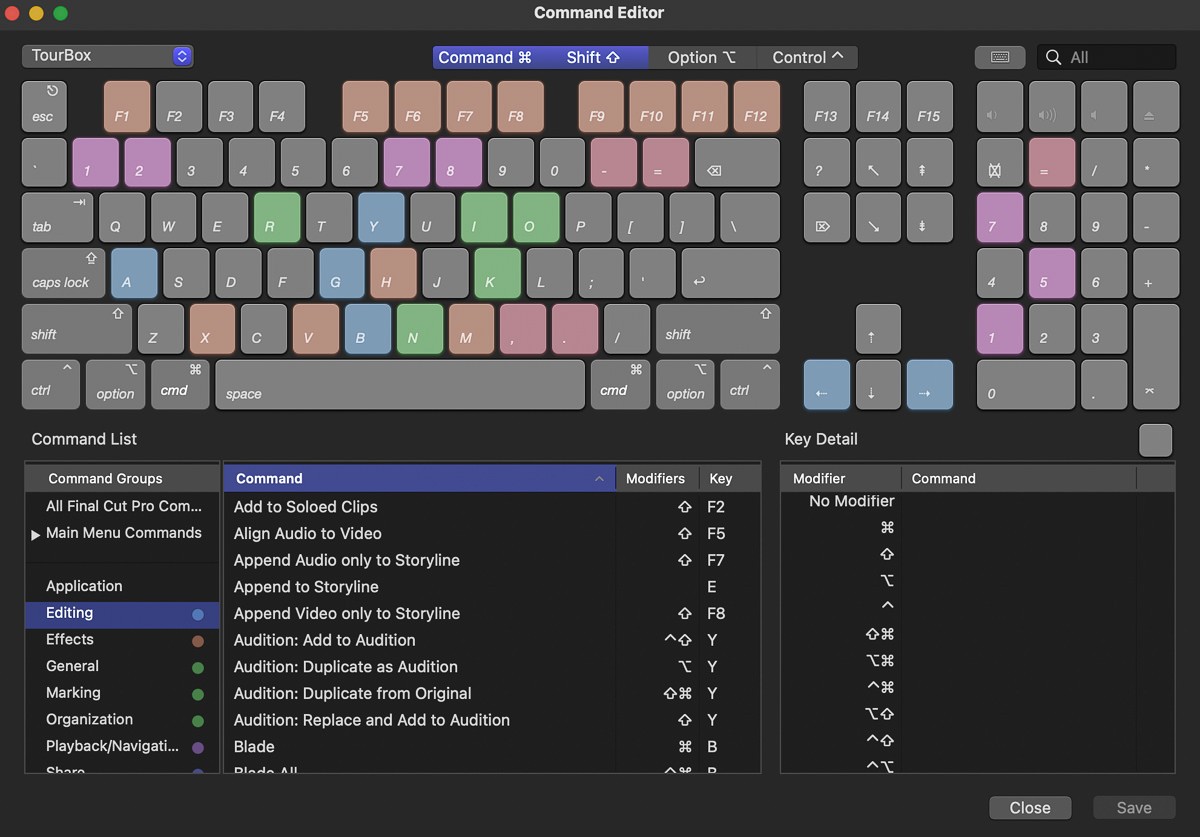
PRO TIP: You can create keyboard shortcuts for any command in any applications on Mac OS X.
Share The Knob
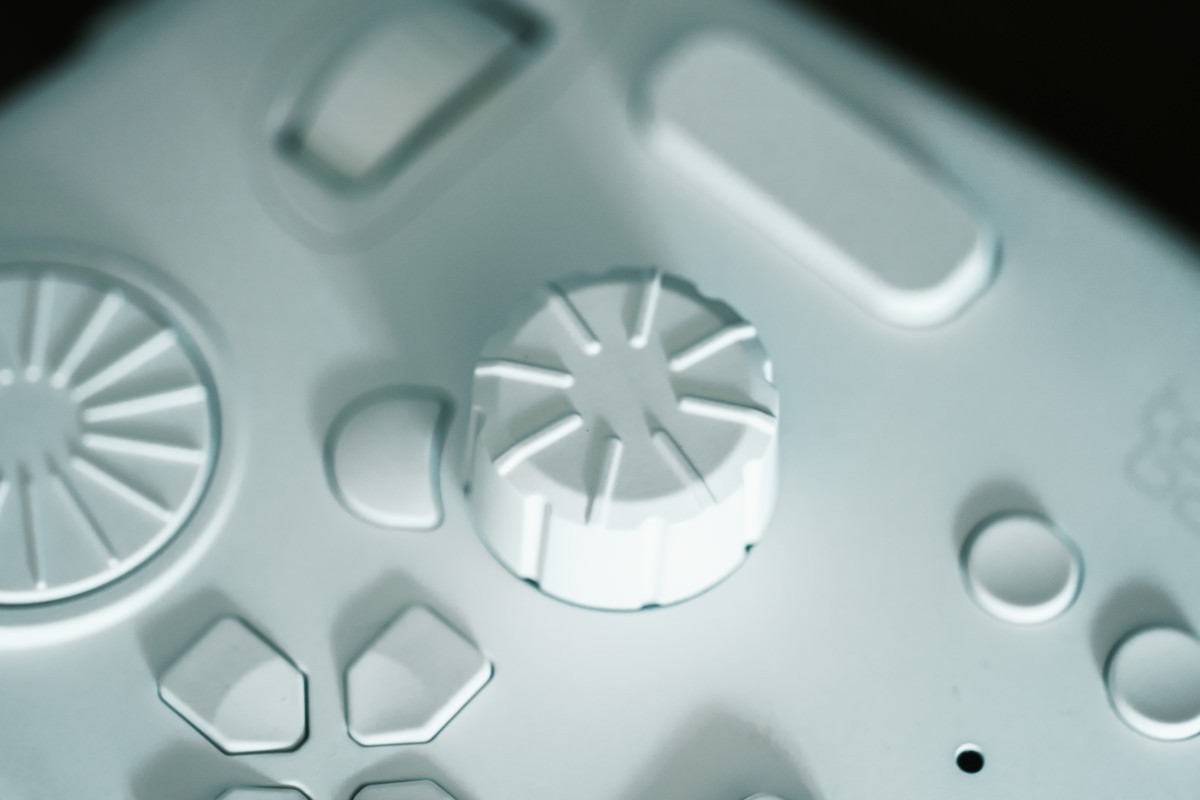
No pun intended for my UK readers. For me, the Knob wheel is heart of the TourBox. Rather than assign it to do one thing, use it adjust multiple parameters.
Depending on the application, you should set it to “Move The Timeline Pointer” or “Adjust Selected Slider.”
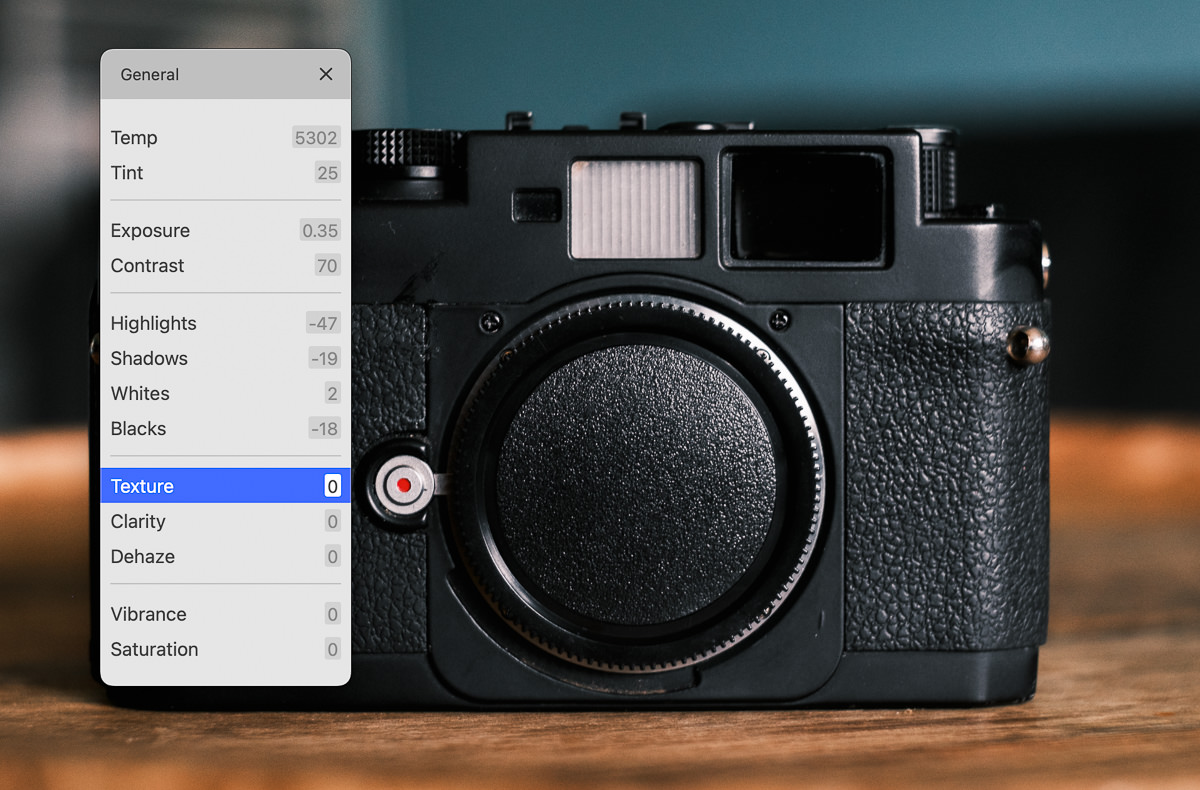
In Lightroom, I make adjustments with TourMenus. I use my mouse or scroll wheel to go through the different parameters and use the Knob to slider back and forth for each selection.
use code KIEN10 to get free shipping and $10 off any Tourbox device.
Which Is The Right TourBox For You?
I’ve used every TourBox to date, so I can tell you exactly which one to buy.
The full lineup now includes the Neo, Elite, Elite Plus and Lite. So which one should you buy if you want to start using the TourBox?
TourBox Original/Neo
Released in 2020. A slightly updated version of the original Tourbox. Available for $169. Sort of a no-man’s land offering at this point since I think the Lite is a better value if you’re contemplating something with a wire.
Pros: Has all the buttons, wheels and dials. Sits right in the middle of the lineup.
Cons: Wired. Lacks haptic feedback.
TourBox Elite
Released in 2022. Premium console offering the best TourBox user experience. Available for $268 on Amazon or with a $10 discount using code KIEN 10 when you buy direct. Probably the one I’d recommend if you don’t plan on using the TourBox with a tablet.
Pros: Dual-channel Bluetooth 5.0 so it’s wireless. Haptic feedback. Premium coating.
Cons: Not much. Requires 2 AA batteries for wireless use. No iPad or tablet compatibility.
TourBox Lite
Released in 2024. A simplified console with fewer buttons and wheels. Available for $95
Pros: Great price. Simplified layouts. New premium coating for fewer finger prints. Lightest and smallest console.
Cons: Wired. Fewer buttons and wheels.
TourBox Elite Plus
This is the flagship TourBox Elite with the long-awaited compatibility for iPad and other tablets. This is a game changer for artists and editors who are using to a Wacom or iPad workflow.
Available for $297 on Amazon or with a $10 discount using code KIEN10 when you buy direct.
Pros: This is the best TourBox you can get. If you’re using something like Procreate or any digital graphics software on an iPad or tablet, this is almost a must-have accessory. For about $30 more than the normal Elite, you’re somewhat future-proofing yourself.
Cons: The most expensive TourBox.
You can use code KIEN10 to get free shipping and $10 off any TourBox device.
RECOMMENDATION: At $95, the TourBox Lite is an economical way to see if the Tourbox system is for you. Despite having fewer buttons and wheels, the current software still allows you to create a high number of combinations to meet your shortcut needs. The only real drawback for me is that it still requires a cable for connectivity in 2024.
If you are a professional and love customization, the TourBox Elite or the TourBox Elite Plus will allow you to get everything out of the TourBox ecosystem. For me, having a wireless console is well worth the price difference.
Updated on March 13, 2026